Hearing aids paired to an Iphone

How to pair hearing aids to an iPhone

New level of convenience and control

For many hearing aid wearers, staying connected to the world goes beyond the sounds around them. Pairing your hearing aids to your iPhone opens up a whole new level of convenience and control. Imagine streaming your favorite music, taking phone calls with clarity and even customizing your hearing aid settings right from your phone. Whether you’re setting it up for the first time or troubleshooting a minor issue, this guide will walk you through what you need to know to make the most of this seamless connection.

Key Takeaways

  • Many hearing aid models are compatible with iPhones, offering seamless streaming of calls, music and other audio directly to your hearing aids, powered by MFi (Made for iPhone). 
  • Connecting hearing aids to an iPhone is straightforward: activate pairing mode on your hearing aids, enable Bluetooth on your iPhone and complete the pairing process. Depending on your hearing aid model, go to: Settings > Accessibility > Hearing Devices or Settings > Bluetooth.
  • The Miracle-Ear app offers enhanced functionality, allowing users to pair hearing aids, customize settings and access advanced features for a more personalized experience
  • Troubleshooting is simple for common connection issues. Check Bluetooth settings, restart both devices and ensure firmware and iOS updates are current to resolve most problems. 
  • Advanced features like Live Listen turn your iPhone into a remote microphone, while programs and remote control options in the app allow you to tailor your hearing experience effortlessly. 
  • Maintaining a stable connection involves keeping your iPhone and hearing aids updated, monitoring battery levels and limiting interference from nearby Bluetooth devices.

iPhone and hearing aid compatibility

Many hearing aids, including some Miracle-Ear models, are made for iPhone (MFi hearing devices), allowing you to adjust settings, enhance calls and enjoy music effortlessly.1, 2 If you’re looking for hearing aids that connect to iPhone, ask your hearing care provider about iPhone hearing aid compatibility. Apple and hearing aids now work together to deliver a better listening experience, so whether you use hearing aids made for iPhone or other hearing aids that connect to iPhone, the integration ensures a personalized experience.

Step by step: How to connect hearing aids to iPhones

Follow these simple steps to effortlessly connect your Miracle-Ear hearing aids and your iPhone:

For Miracle-Ear hearing aids, you need to first power cycle your hearing aid:3

  • For hearing aids with disposable batteries, open and close the battery door to activate pairing mode.
  • For rechargeable hearing aids, turn them off and then on again, or remove them from their charger.
  • Make sure the hearing aids are within a few feet of your iPhone to ensure a strong connection.

  • On your iPhone, first navigate to Settings > Bluetooth and turn on Bluetooth to allow your iPhone to detect nearby hearing aids.
  • To activate Apple hearing aid mode, go to Settings > Accessibility > Hearing Devices. Your iPhone will begin searching for compatible hearing aids.

  • Place your hearing aids next to your iPhone.
  • When the hearing aids’ name appears under MFi Hearing Devices, tap on it.
  • Confirm any Bluetooth pairing requests that pop up. You may need to do it twice to pair each hearing aid individually (right and left).
  • Wait for the pairing process to complete.

  • Once paired, go to Settings > Accessibility > Hearing Devices > MFi Hearing Devices to customize hearing aid settings on iPhone.
  • Adjust volume levels, audio routing options or microphone sensitivity directly from your iPhone.
  • Use the Control Center or Lock Screen (if enabled) for quick access to key features like volume or Live Listen.
Miracle-Ear rechargeable hearing aids

Find the right hearing aid for you

If you have questions about hearing aid domes or you’re looking to find the right fit, schedule an appointment with a licensed HCP at your local Miracle-Ear.

Switching from hearing aids to speaker on iPhone

You can transition smoothly between private and shared listening experiences based on your needs. Here’s how to switch from hearing aids to speaker on iPhone:

  • Open Control Center on your iPhone:
         Swipe down from the top-right corner (or up from the bottom on older models).
  • Tap the AirPlay or Audio Output icon.
  • Select Speaker” to switch audio output from your hearing aids to your iPhone’s speaker.
  • If the “Speakeroption doesn’t appear, temporarily disconnect your hearing aids.

Pair to the Miracle-Ear app with your Miracle-Ear hearing aids

If you’re wondering how to pair Miracle-Ear hearing aids to iPhone, download the Miracle-Ear app then follow these steps:

  • Start the app and turn on your hearing aids. Wait for the app to detect your hearing aids.
  • Once they are identified, a video will guide you through pairing the hearing aids in your smartphone settings. Follow the steps shown in the video, then return to the app and wait for the pairing process to complete.
  • When pairing is successful, you’ll receive a confirmation message, and the app will automatically display the homepage.

Unlock the full potential of your hearing aid with the Miracle-Ear App. Adjust your device settings on-to-go to fit noisy or quiet environments. The app makes it easy to stay in tune with your hearing health. It offers online booking, access to Miracle-Ear Customer Support, as well as educational resources like video tutorials and articles – all in one place. Wherever life takes you, your hearing goes with you. Download the Miracle-Ear app today!

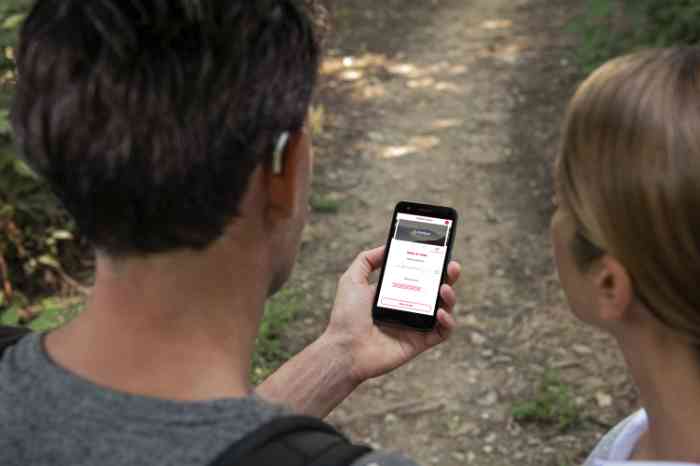
A man adjusting settings for his hearing aid via smartphone

Download the Miracle-Ear hearing aid app

The Miracle-Ear® app is available for iOS and Android devices. Download it from the App Store or Google Play today!

Get the Android App Get the iOS App

Connecting hearing aids to more than one device

For those who use other Apple devices along with your iPhone, here’s how to pair hearing aids with iPad or Mac effectively:4

  • Pair the hearing aids with your additional device by following the same steps used for your iPhone.
  • Sign in to your iCloud account on all devices to sync hearing aid settings seamlessly.
  • Apple devices automatically switch the hearing aid connection depending on your activity. For example, if you receive a call on your iPhone, the hearing aids will prioritize that connection.
  • Ensure Bluetooth remains enabled on all connected devices for uninterrupted handoffs.

How to disconnect hearing aids from iPhone

  • Go to Settings > Accessibility > Hearing Devices.
  • Select your paired hearing aids in the list of devices.
  • Scroll down and tap Forget this device.
  • Confirm the action to disconnect your hearing aids.

Once disconnected, your hearing aids won’t automatically reconnect unless you pair them again.

Troubleshooting common issues

Troubleshooting common connectivity issues between your hearing aids and iPhone is essential for a seamless listening experience. Whether you’re facing pairing problems, audio disruptions or frequent disconnections, these simple steps will help you quickly resolve the most common challenges.

  • Verify that Bluetooth is enabled under Settings > Bluetooth.
  • Ensure your hearing aids are in pairing mode by restarting them.
  • Restart your iPhone if the issue persists.
  • Consult your Hearing care professional for further assistance.

  • If your hearing aids are connected to iPhone but no sound is heard, ensure the hearing aids are selected as the output device in Control Center > Audio Output.

○ When you come into close proximity with a car you are connected to or another Bluetooth device, that new device will become the primary streaming device.

  • Adjust volume levels on your iPhone.

  • If you’re wondering, “why don’t my hearing aids stay connected to my iPhone,” first maintain close proximity between your iPhone and hearing aids.
  • Ensure Bluetooth is enabled and not conflicting with other devices.
  • Confirm both devices are fully charged, as low battery levels can disrupt connectivity.
RIC hearing aid in a hand

Reasons to invest in high-quality hearing aids

Learn why investing in high-quality hearing aids is the best long-term option for your health—and happiness.

Learn more

Advanced features and benefits

Unlock a new level of convenience and control with advanced features designed to enhance your hearing experience. From creating custom sound programs to using your iPhone as a remote control or microphone, these tools make it easier than ever to tailor your hearing aids to your unique needs.

The Miracle-Ear app allows you to create programs for various environments, such as quiet rooms or bustling public spaces. Save and switch between programs easily to optimize your hearing experience.

Live Listen transforms your iPhone into a remote microphone, streaming audio directly to your hearing aids for improved clarity in noisy settings.5 Simply place your device near a speaker or conversation partner to enhance sound quality. However, it’s important to note that Live Listen is not a substitute for professional hearing aids.6 Unlike devices prescribed by hearing care specialists, it lacks in-office testing, tailored guidance and expert support based on your individual hearing needs.

Through the Miracle-Ear app, adjust volume, change programs or control the balance between treble and bass using your iPhone. This hands-free capability ensures convenience wherever you go.

Maintaining a stable connection

Maintaining a steady connection between your hearing aids and iPhone is key to a smooth and enjoyable performance. Focusing on battery management and keeping your devices updated can help support consistent performance and ensure you get the most out of your hearing aids.

  • Rechargeable hearing aids should be placed overnight on their charger to avoid interruptions during the day.
  • Monitor battery levels in the Miracle-Ear app or Control Center > Hearing Devices.
  • Carry spare batteries or a portable charger for additional security, especially when traveling.

Ensure your iPhone stays on the latest iOS version. New updates often include bug fixes and enhanced support for MFi hearing devices. Before updating, confirm your hearing aids are compatible with the new iOS version to avoid disruptions.

By following these steps and tips, you can maximize the features and benefits of your Miracle-Ear hearing aids and stay seamlessly connected to your iPhone.

Find the closest center to you

Your store

Sources

1 Miracle-Ear. “Hearing Aids for iOS® and Android® Phones.” Miracle-Ear Blog, 30 May 2023, https://www.miracle-ear.com/blog-news/hearing-aids-apple-android.

Apple Support. “Use Made for iPhone Hearing Devices.” Apple Support, 22 May 2025, https://support.apple.com/en-us/108780.

3 Miracle-Ear. “Miracle-Ear® Hearing Aid App.” Miracle-Ear Blog, www.miracle-ear.com/advanced-hearing-aid-technology/miracle-ear-app. Accessed 17 June 2025.

4 Apple Support. “Use Hearing Devices with iPhone.” Apple Support, 22 May 2025, https://support.apple.com/guide/iphone/use-hearing-devices-iph470b1833/ios.

5 Apple Support. “Use Live Listen with Made for iPhone Hearing Aids.” Apple Support, 7 Mar. 2024, https://support.apple.com/en-gb/111777. 

6 Miracle-Ear. “Can AirPods® Be Used as Hearing Aids?” Miracle-Ear Blog, 30 May 2023, https://www.miracle-ear.com/blog-news/can-airpods-be-used-as-hearing-aids.

Apple, the Apple logo, MacBook (iOS), iPad and iPhone are trademarks of Apple Inc., registered in the U.S. and other countries. App Store is a service mark of Apple Inc.

Get support and advice

Book an appointment online

Book now

Take a free online hearing test

Start test

Find a hearing aid center near you

Search now